 Gummy Mob
What are child-directed ads, and how do games set them up?
A plain-words guide for parents to the settings behind ads in free kids' games, using one real game as the example.
In this guide
Child-directed ads are ads requested with a label that tells the ad network the viewer may be a child. With Google's ad tools, that label switches off interest-based ads and remarketing for the request, so the ad is not chosen from a profile of the child. Games set it up by asking the player's age or by treating everyone as a child, and they usually add a content rating cap on top.
Most free games pay for themselves with ads. When the player is a child, that raises fair questions: who chooses the ad, and is it suitable? The answer starts with a setting many parents never see.
This guide explains what are child-directed ads in plain words, what the label really changes, how a game decides who gets it, and how you can check a game on your child's phone. We use our own game, Gummy Mob, as the worked example, because we can show you exactly what it does in its code.
What "child-directed" means for an ad
An app does not usually pick its own ads. It asks an ad network, such as Google AdMob, for one. Each request can carry extra labels, and one of them says: treat this as a request for a child.
In the United States, that label exists because of COPPA, the Children's Online Privacy Protection Act, which covers children under 13. In the European Economic Area, a related label marks users who are under the age of digital consent, which each country sets between 13 and 16. Google's ad tools have a separate tag for each.
Google's own help pages describe what happens when a request is tagged for a child: the network takes steps to turn off interest-based advertising and remarketing for that request. In everyday words:
- No interest-based ads. The ad is not picked from what the network thinks the child likes or has looked at.
- No remarketing. The child is not followed around by ads for things they saw in another app.
- Contextual ads are still possible. An ad can still be chosen from the app itself, the way a comic might carry ads for toys.
Google has also announced a newer, single age signal for future versions of its ad tools. The idea stays the same: the app tells the network the viewer's age group, and the network changes what it does.
Child-directed is not the same as a content rating
A common mix-up: the child-directed label is about data and targeting, not about what the ad shows. A non-personalised ad can still be for a film or a game meant for older viewers.
That is why careful games set a second thing: a maximum ad content rating. Google's ad tools let an app cap ads at G, PG, T or MA, a bit like film ratings. G is the strictest, meant for general audiences including young children.
So when you read that a game "shows child-safe ads", ask two questions:
- Are requests for young players marked as child-directed, so the ads are not personalised?
- Is there a rating cap, and which one?
In Gummy Mob, every ad for every player is capped at G, and requests for players under 13 also carry the child-directed and under-age labels plus a request for non-personalised ads only.
How a game decides who gets child-directed ads
A game has three main ways to set this up.
Treat everyone as a child. Games made only for young children usually label every request. It is simple, and it means nobody gets personalised ads.
Ask the player's age. Games with a mixed audience, children and adults, often ask a neutral age question at the start. Good practice is to not pre-select an answer and to not hint at a "right" one, so children are not nudged to claim they are older.
Use the device or account. Some apps also respect signals from a supervised Google account, but the game still has to set its own ad labels.
Gummy Mob uses the second way. The first time it opens, it asks "What year were you born?" with a plain grid of years. No year is selected, and Continue stays grey until one is tapped. The answer is saved only on the phone.
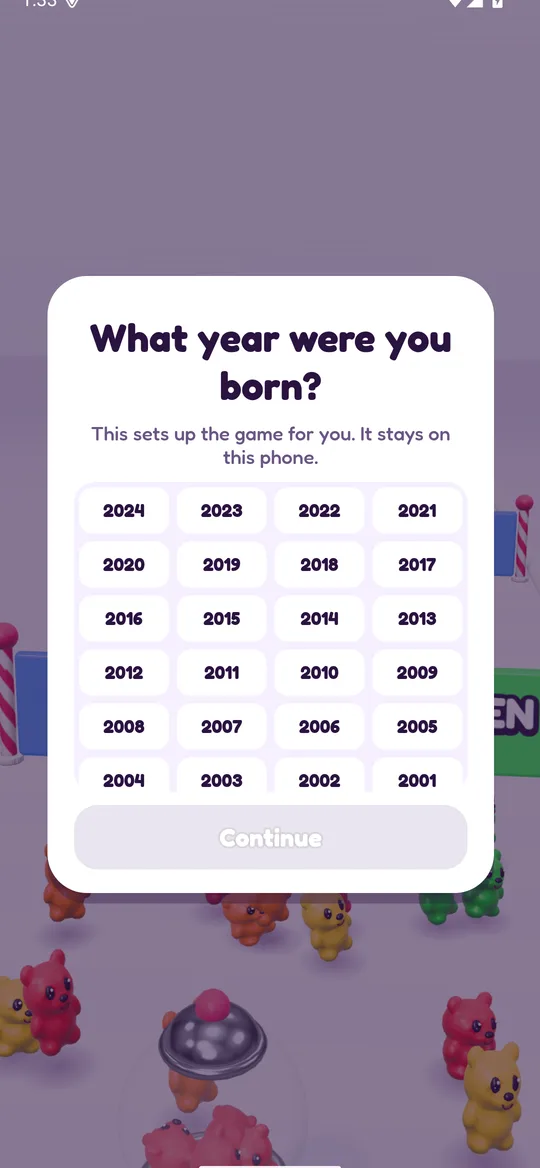
Anyone who could still be 12 is treated as under 13. For those players the game turns on the child-directed and under-age labels, asks for non-personalised ads, and skips the consent form. Players 13 and over may see Google's consent form where the law needs it, and get an "Ad privacy choices" button in Settings.
What ads look like in a child-directed game
The label is only half the picture. The other half is when and how ads appear. Here is how it works in Gummy Mob, which follows Google Play's Families policy:
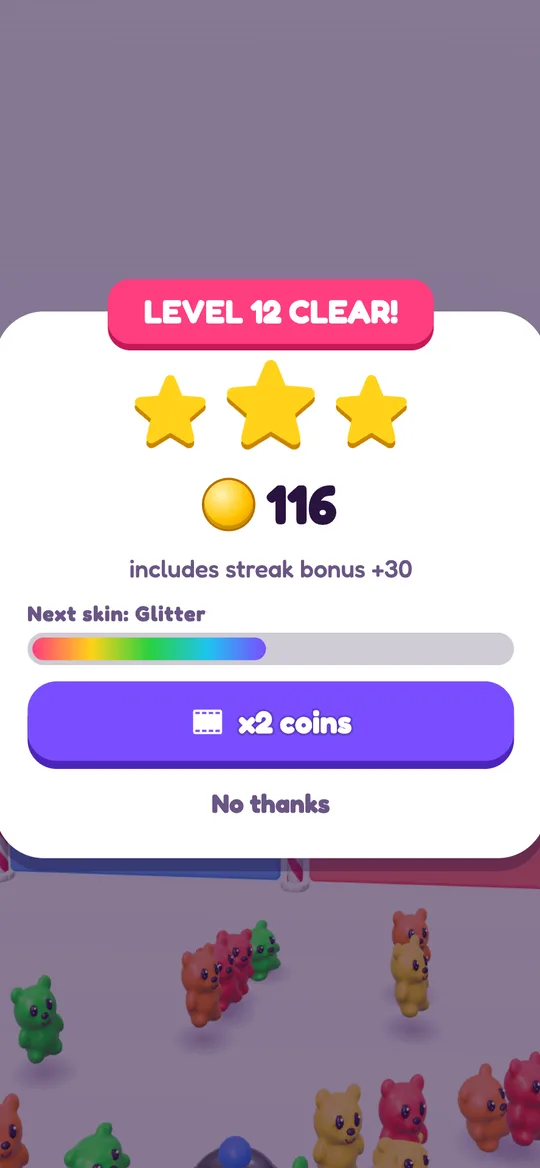
- Reward videos are opt-in. They only play when the player taps a button with a small film icon, for example for double coins or a continue.
- Break ads come only after a win. They start from level 6, at most one every 3 minutes, never in the first minute, never during play and never after a loss.
- One small banner sits on menus and result cards, with clear space around it so it is hard to tap by accident.
If you want the full picture for this game, including data and deletion, our guide is Gummy Mob safe for kids walks through every setting, and the privacy policy has the details.
How to check a game on your child's phone
You do not need to read code to get a good idea of how a game handles ads. These steps take a few minutes:
- Open the game's Play Store page. Look for the "Contains ads" line under the install button, and check the age rating.
- Scroll to Data safety. It lists what data the app collects and shares, and with whom. Ads usually show up as device IDs shared with an ad network.
- Open the privacy policy. Search the page for words like "child-directed", "COPPA", "non-personalised" or "under 13". A careful game says plainly what it does for children.
- Watch the first launch. Does it ask an age question? Is a year already selected? Can a child see which answer unlocks more?
- Play a few levels yourself. Note when ads appear, whether videos only play after a tap, and whether ads ever cover the game.
- Check the phone's own ad settings. On many Android phones you will find them under Settings, then Google or Privacy, then Ads, where you can delete the advertising ID.
While you are in the Play Store settings, it is also worth setting up purchase locks. Our guide on how to turn off in-app purchases on Android shows the steps.
What child-directed ads do not do
It helps to be clear about the limits, so the label is not read as a promise it cannot keep:
- It does not remove ads. The game still shows them.
- It does not by itself filter what an ad shows. That is the job of the rating cap.
- It does not stop a game from asking for more data in other ways. Check the Data safety section and permissions too.
- It only works if the game sets it. Each app makes its own choices.
FAQ
What are child-directed ads in simple words?
They are ads requested with a label saying the viewer may be a child. With Google's ad tools, that label turns off interest-based ads and remarketing for the request, so the ad is not chosen from a profile of the child.
Are child-directed ads the same as kid-friendly ads?
No. The child-directed label is about targeting and data. What the ad shows is controlled by a separate content rating cap, such as G. A careful game sets both.
Does Gummy Mob use child-directed ads?
Yes, for players under 13, based on the birth year from the age screen. Their ad requests are marked as child-directed and under the age of consent and ask for non-personalised ads, and every ad in the game is capped at a G rating.
Can my child just pick an older birth year?
They can, which is why good age screens stay neutral: no year is pre-selected and nothing hints at a right answer. In Gummy Mob, all ads are capped at G whatever year is picked, so the content limit applies to everyone.
How can I tell if a game uses child-directed ads?
Read its privacy policy and look for words like child-directed, COPPA or non-personalised, check the Data safety section on its Play Store page, and watch the first launch for a neutral age question.