 Gummy Mob
How to turn off in-app purchases on Android
There is no one magic switch, but three settings together stop surprise purchases on a child's phone or tablet.
In this guide
Android does not have a single switch that turns off in-app purchases. The closest thing is a Google Play setting called "Require authentication for purchases": set it to every purchase, and nothing can be bought without your password or fingerprint. For a child's own Google account, Family Link purchase approvals add a second lock, and removing the saved card adds a third.
You hand a tablet to your child for a quick game, and later an email arrives: a purchase you never meant to make. It is a common story, and it is why so many parents search for how to turn off in-app purchases on Android.
The honest answer is that Google Play has no "off" button for in-app buying. What it does have is a set of locks. Used together, they mean nobody can spend money on the device without you. This guide walks through each one in the order we suggest setting them up, then explains how to check a game before your child plays it.
Why there is no single off switch
On Android, almost every purchase inside an app goes through Google Play billing and is charged to the Google account signed in on the device. So the controls live in the Play Store app and in your Google account, not in each game.
That gives you three places to act:
- The device: ask for a password or fingerprint before any purchase.
- The child's account: if your child has their own supervised Google account, require a parent to approve purchases.
- The payment method: if there is no card on the account, there is nothing to charge.
Menu names can shift a little between Play Store versions and phone brands. If a label below does not match exactly, look for the nearest wording in the same menu.
Step 1: Require authentication for every purchase
This is the most important setting. Do it on every phone and tablet your child uses.
- Open the Google Play Store app.
- Tap your profile picture in the top right corner.
- Tap Settings, then open Authentication.
- Tap Require authentication for purchases.
- Choose For all purchases through Google Play on this device.
- Enter your Google account password to confirm.
The other choices are weaker. "Every 30 minutes" means that once you type the password, a child holding the device could buy again shortly afterwards without being asked. "Never" removes the lock completely.
Step 2: Turn on purchase approvals in Family Link
If your child has their own Google account managed with Google Family Link, you can ask Google to send every purchase request to you first. This works across all of your child's devices, not just one.
- Open the Family Link app on your own phone.
- Select your child.
- Open Controls, then Content restrictions, then Google Play.
- Tap Purchase approvals (it may also appear as "Purchases & download approval").
- Pick the option that covers in-app purchases. Approving all content is the strictest choice.
Now, when your child taps a buy button, a request appears on your phone. You can approve or decline it.
While you are in the Google Play controls, you can also set a content rating for apps and games, which limits what your child can find and install. Our parent's guide to Gummy Mob shows the same parental controls menu from inside the Play Store.
Step 3: Remove or limit the saved payment method
A lock is good. No key is better. If your child uses a shared family device signed in to your account, consider removing the card from Google Play.
- Open the Play Store, tap your profile picture, then Payments & subscriptions.
- Tap Payment methods, then More payment settings.
- Sign in if asked, find the card and choose Remove.
You can add the card again when you want to buy something yourself. Some families prefer a Google Play gift card instead, so any spending has a fixed limit you chose.
How to check a game before your child plays
The Play Store listing tells you a lot before you install anything.
- Open the game's page in the Play Store.
- Look just under the name for the line Contains ads and In-app purchases. If "In-app purchases" is missing, the game does not sell anything through Google Play.
- Scroll to Data safety to see what data the game collects and shares.
- Check the content rating, such as PEGI 3 or Everyone.
- Play the first few levels yourself and open every menu with a coin, gem or gift icon.
That last step matters, because the word "shop" does not always mean real money. In many free games, the shop only spends in-game coins that are earned by playing.
What this looks like in Gummy Mob
We make Gummy Mob, so here is exactly how our own game handles money.
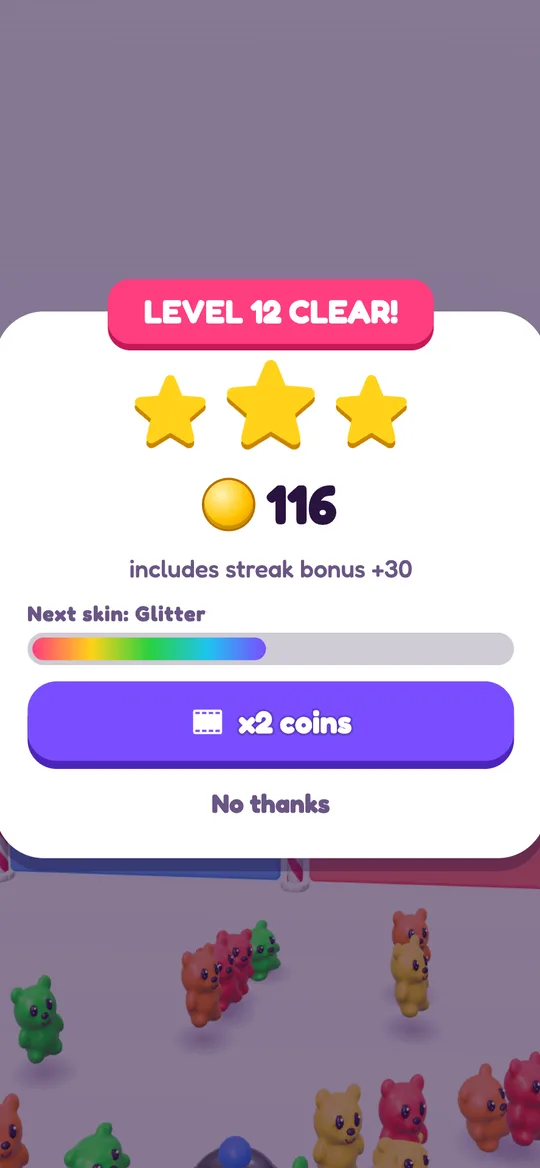
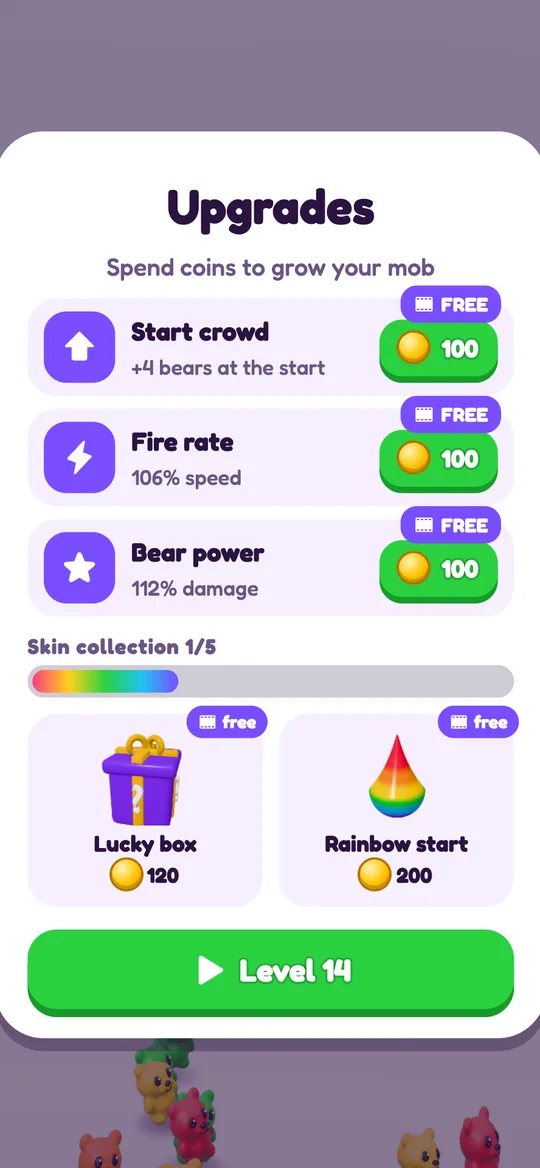
Gummy Mob has no in-app purchases. The game does not include Google Play billing at all, so there is no price in real money anywhere. Coins, gems, skins and the Gummy Pass rewards are all earned by playing, or with an optional short video your child chooses to watch by tapping a button with a film icon. The shop's free coins tab works the same way: videos, not payments.
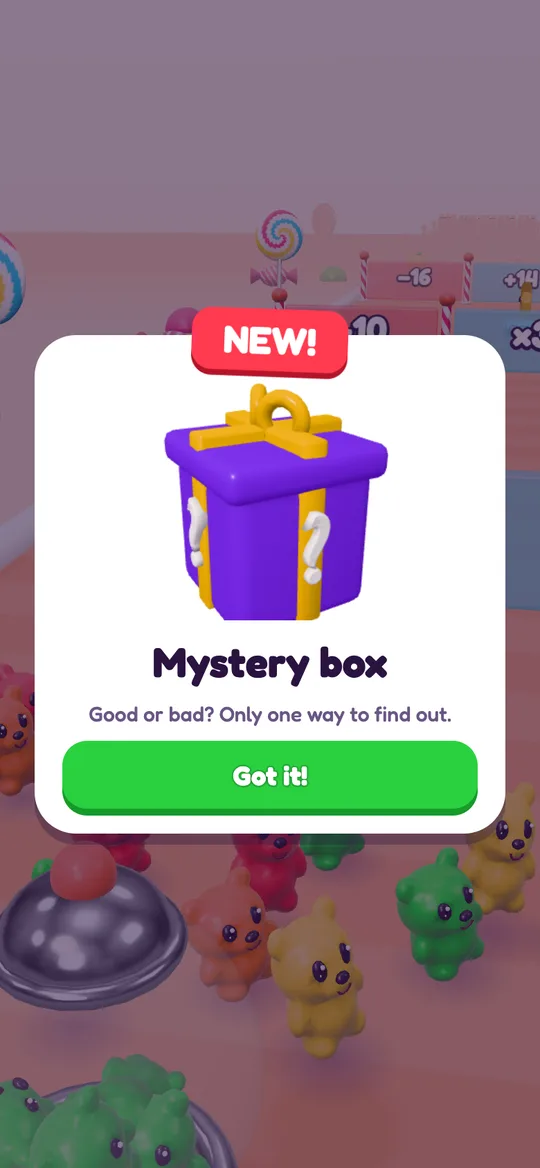
The mystery boxes on the candy road and the free box that refills every 2 hours give random coins or power-ups, and they cannot be bought either. If you want to see how players build up coins without spending a thing, our guide on earning coins faster walks through every source.
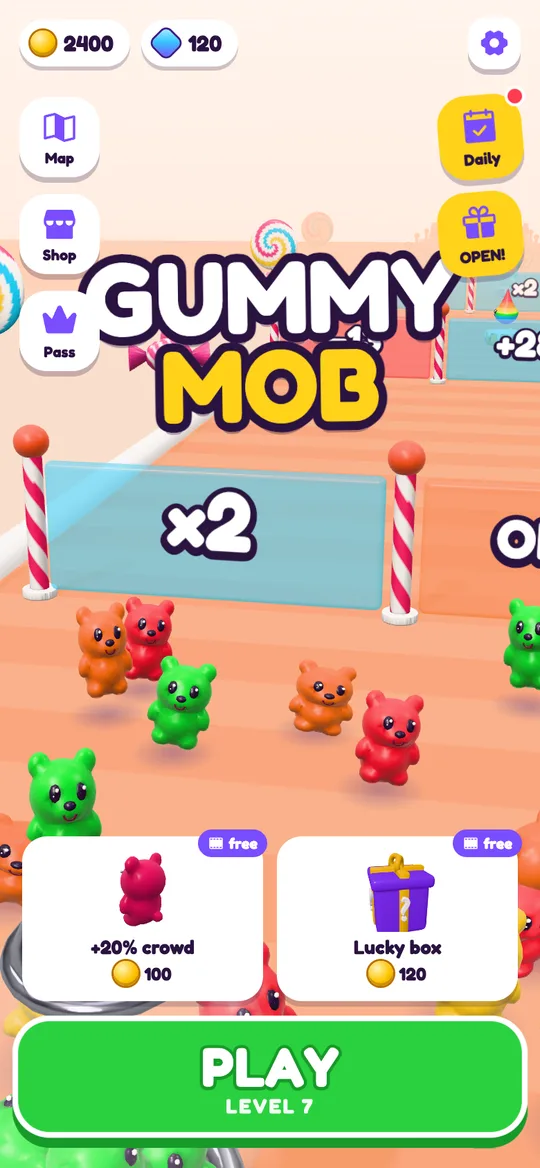
The game does show ads. Break ads can appear only after a won level, from level 6, at most once every 3 minutes, and never during play or after a loss. Players under 13 only get child-directed, non-personalised ads. A grown-up question, a quick multiplication sum, guards the privacy policy link and Delete my data. Full details are in our privacy policy.
Even so, we still suggest Step 1 on any device a child uses. It protects every app on the phone, not only ours.
A quick checklist
- Play Store: Require authentication set to all purchases.
- Family Link: purchase approvals on, if your child has their own account.
- Payment method: removed, or replaced by a gift card.
- New games: check the listing for "In-app purchases" and play a few levels yourself.
If you are new to the kind of game your child is asking for, our explainer on what a crowd runner game is covers how these short, gate-picking games work.
FAQ
Can I turn off in-app purchases completely on Android?
Not with one switch. Google Play offers locks instead: require authentication for every purchase, use Family Link purchase approvals for a child's account, and remove the saved payment method. Together they stop purchases you did not approve.
Does "Require authentication for purchases" work in every app?
It covers purchases made through Google Play billing on that device, which is how most Android apps and games sell items. Set it on each device your child uses, because the setting belongs to the device.
What does "Every 30 minutes" mean in the authentication setting?
After you type your password for one purchase, the Play Store will not ask again for 30 minutes on that device. That leaves a window for a child to buy something, so the "all purchases" choice is safer.
Does Gummy Mob have in-app purchases?
No. Gummy Mob has no in-app purchases and no Google Play billing. Coins, gems, skins and Gummy Pass rewards are earned by playing or with optional reward videos that only play when you tap the button.
Do these settings stop ads in games?
No. These settings control spending, not ads. Ads are controlled by each game. In Gummy Mob, players under 13 only get child-directed, non-personalised ads, and break ads never appear during play.